

On a typical audio mixer, the input gain control sets the signal level entering the channel’s processing stages. The channel fader adjusts how much of that channel is sent to the main mix and other post-fader destinations. Set a suitable input level first, then use the fader to balance the mix.
Both controls can change the sound level you hear. Their position in the signal path explains why they are not interchangeable—and why lowering a fader cannot repair distortion already created at the input.
This guide focuses on common microphone-input channels on live-sound and compact analog mixers. Digital mixers may add separate preamp gain, digital trim and assignable controls. Always check the model’s labels and signal-flow diagram.
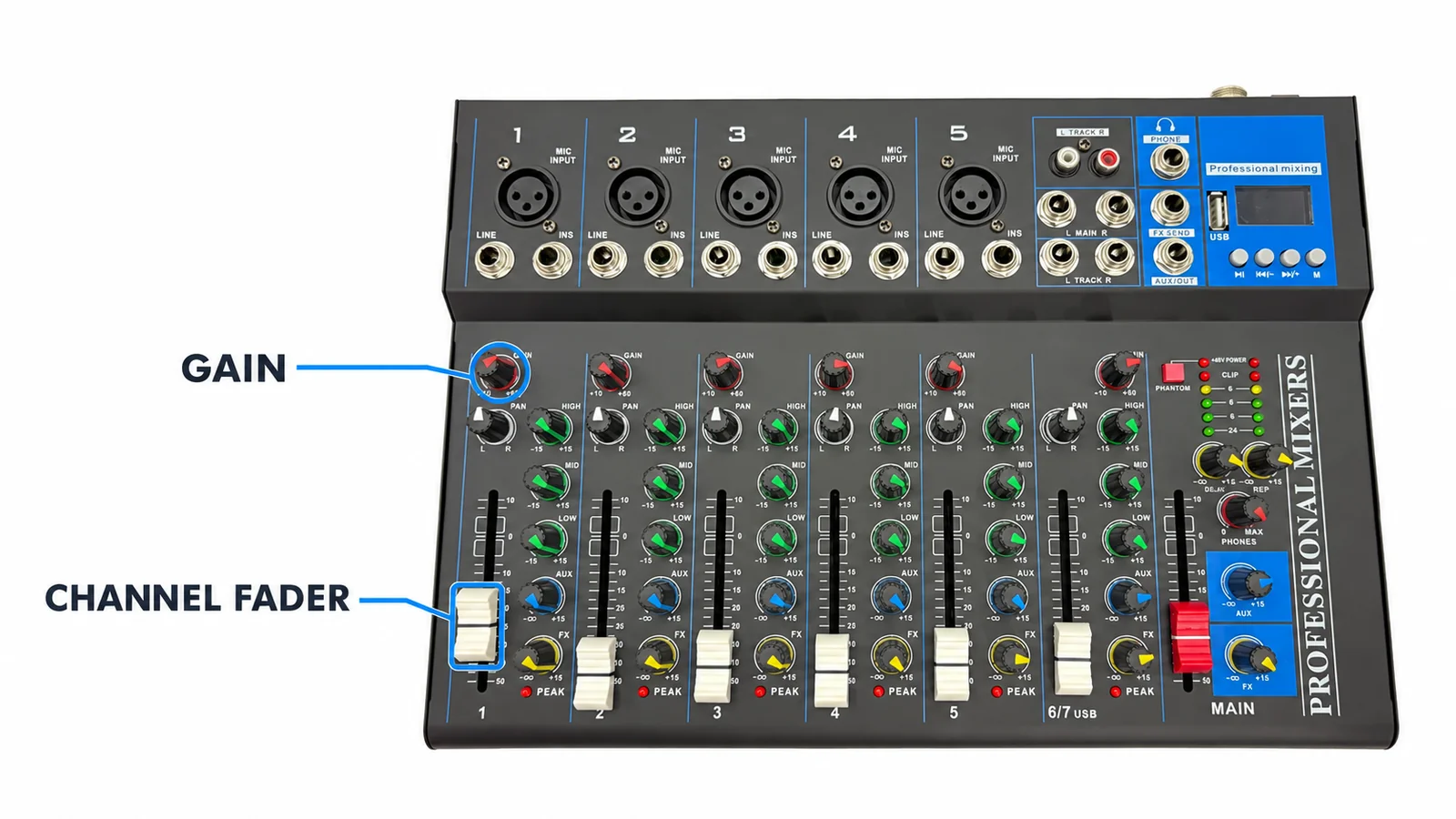
Gain knob vs channel fader: how to identify them
On many analog mixers, the gain knob sits near the top of a channel strip, close to the input section. A channel fader is usually a sliding control near the bottom. However, shape alone does not tell you what a control does.
| Feature | Input gain control | Channel fader |
|---|---|---|
| Common appearance | Rotary knob; sometimes an encoder or screen control | Linear slider; compact mixers may use a rotary LEVEL control |
| Common labels | GAIN; sometimes TRIM on analog mixers | Channel number, LEVEL or a fader scale |
| Typical position | Near the input section | Near the bottom of the channel strip |
| Main purpose | Match the incoming source to the channel’s operating level | Balance the channel within the mix |
| Typical use | Initial setup and correcting a changed source level | Adjusting the mix during use |
A knob labelled LEVEL may perform the job of a channel fader. Conversely, a digital mixer’s TRIM control may change the signal after conversion rather than adjust its analog preamp. Identify the function from the manual, not just the control’s shape or name.
What do gain and faders actually control?
Input gain establishes the working signal level
A microphone and a line-level source do not normally deliver the same signal level. The mixer’s input circuitry must accommodate the connected source. On a microphone channel, the gain control typically adjusts the preamplifier’s amplification.
Too much input gain can overload the input stage. Too little may leave an unnecessarily weak signal that requires more amplification later, potentially making accumulated noise more noticeable. The aim is a usable signal with headroom—the margin before overload—for louder moments. Yamaha’s gain-staging explanation describes this relationship between early signal level, noise and clipping.
Gain does not change the microphone capsule’s physical sensitivity. It changes how the mixer handles the electrical signal it receives.
The channel fader sets the balance
Once the input level is appropriate, use the channel fader to place a voice or instrument at the required level in the mix. It normally changes the signal feeding the main mix and any sends configured after that fader.
For example, if a presenter’s input is clean but their voice is too loud compared with background music, lower the presenter’s channel fader. There is no need to disturb a correctly established input gain simply to change that balance.
If the input is already clipping, lowering the fader makes the distorted signal quieter. Correct the overload at the stage where it occurs, which may be the source device, mixer input or another upstream stage.
The master fader controls a different part of the path
The main or master fader controls the combined mix at its position in the output path. It does not separately rebalance individual sources, and it cannot repair clipping that has already occurred in a channel or summing stage.
What does “0” on a fader mean?
The 0 dB or U mark normally identifies unity gain: no level increase or reduction at that control. It does not mean silence. Many channel faders can operate above or below unity; the lowest position is commonly marked −∞ for maximum attenuation.
Do not confuse this with a digital meter reading of 0 dBFS, the full-scale ceiling at a digital converter or fixed-point output. Analog meter reference levels and digital meter scales also differ. Follow the console’s recommended operating range rather than treating every “0” as the same target.
Unity is a useful reference, not a requirement to keep every channel fader in one position. A mix will often need different fader positions.
Where do they sit in the mixer signal flow?
A simplified main-mix path is:
Source → input preamp / GAIN → channel processing → channel FADER → mix bus → MASTER level → output
Channel processing may include filtering, EQ and compression where fitted. Pan, routing switches, inserts and other stages are omitted here for clarity. Their order and the available signal taps vary by model.
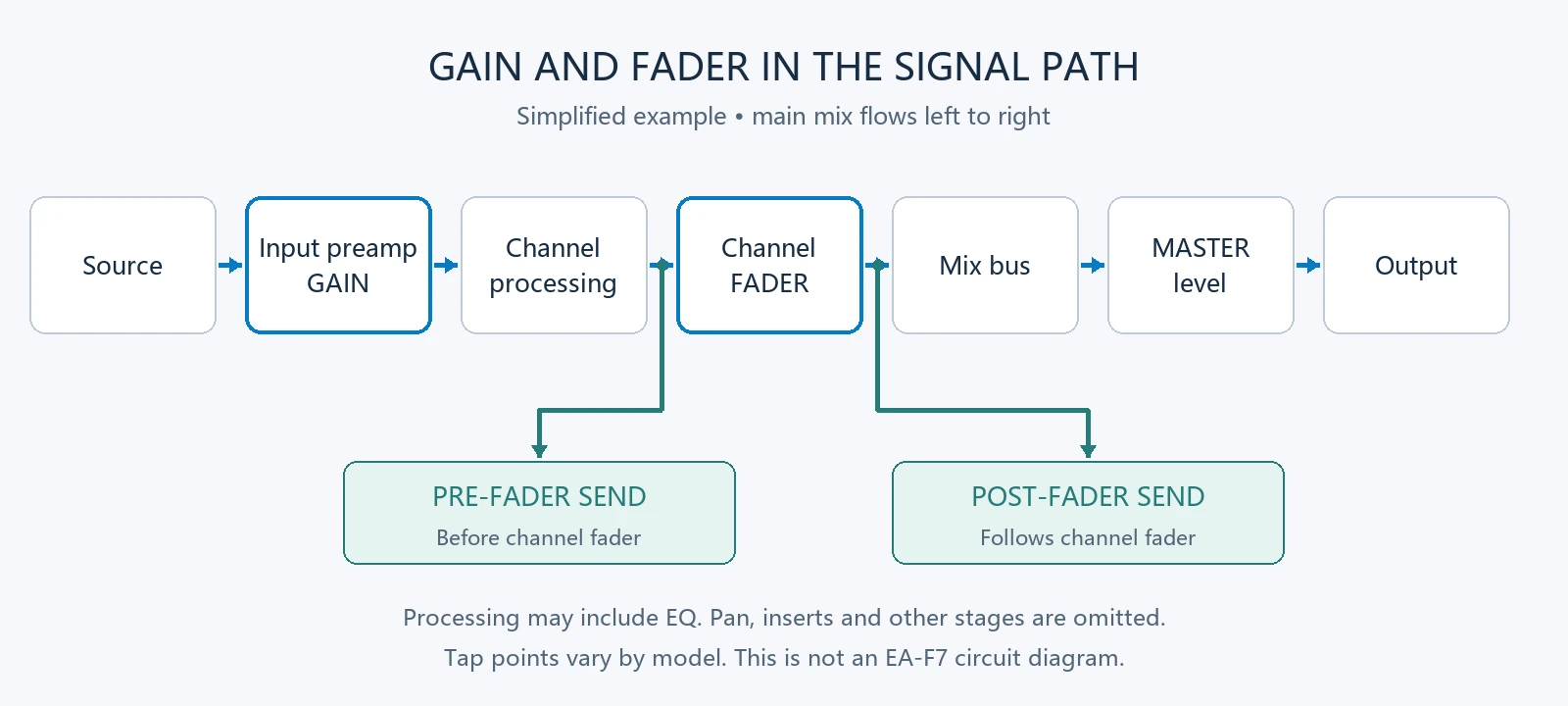
Two branches help explain common behaviour:
- Pre-fader send: Takes signal before the channel fader, often for a separate monitor mix. Moving the channel fader does not normally change this send, but changing upstream input gain can.
- Post-fader send: Takes signal after the channel fader, often for effects. Its level normally follows the channel fader as well as its own send control.
Allen & Heath’s CQ user guide illustrates why changing preamp gain can affect multiple output paths and why pre/post-fader selection matters. Exact mute behaviour and processing tap points are model-specific.
PFL—Pre-Fader Listen—is a monitoring path taken before the channel fader. It is not necessarily before EQ. Likewise, a USB recording feed might be taken before or after the fader. Check routing before assuming that moving a physical control changes the recorded level.
How to set mixer gain and faders, step by step
1. Match the source to the input
Identify whether you are connecting a microphone, a wireless receiver or another line-level device. Match its output mode to the mixer input and use the correct cable. Start with the main output and monitoring levels low enough to avoid an unexpected loud signal.
A wireless receiver’s connector shape alone does not establish its output level. For connection details, see our guide to connecting a wireless microphone, mixer and effects processor.
2. Use a realistic source level
Ask the presenter, singer or musician to produce the loudest level expected during use, at the intended microphone distance. A quiet “one, two” check can underestimate the input level needed for a performance.
Begin with EQ flat and optional dynamics processing bypassed where appropriate, so large boosts or processing changes do not obscure the initial check.
3. Check the channel with PFL or its input meter
If available, select one channel’s PFL and monitor it at a comfortable headphone level. On many mixers, PFL temporarily makes the main meters display the selected pre-fader signal. The channel fader can remain down while you establish gain. Yamaha explains this in Using Solo During Live Mixing.
Confirm the mode before using a button labelled SOLO: it may behave differently from PFL. If the mixer has no PFL, follow its input-level or peak-indicator procedure instead. LED colours and thresholds are not universal.
4. Adjust gain while preserving headroom
Raise gain gradually until the signal falls within the manufacturer’s recommended operating range, with room for peaks. Avoid sustained overload or clipping. There is no universal “12 o’clock” position or meter number that works for every source and mixer.
If the input still overloads at minimum gain, check the source output, input selection and any suitable pad. Lowering the channel fader will not resolve input clipping.
5. Establish the mix with the faders
Release PFL, confirm channel routing, then bring up the channel and master levels gradually. Use the channel faders for relative balance and the master control for the level of the combined mix at its output stage.
The Yamaha MG quick-start procedure is one model-specific example of checking input gain before balancing channels. Its meter targets should not be transferred blindly to a different mixer.
6. Recheck processing and all active outputs
After changing EQ, compression, source output or input gain, check levels again. Listen to the main mix and any monitor, effects or recording paths in use. Several clean individual channels can still produce an overloaded combined mix.
On a digital mixer, distinguish analog preamp gain from digital trim. A downstream trim control cannot undo clipping at an earlier converter. Consult the mixer’s architecture; Allen & Heath’s SQ processing guide is an example of a system that provides separate controls.
Common problems: which control should you adjust?
| What you notice | What to check first | Appropriate response |
|---|---|---|
| Distortion remains after lowering the channel fader | Source output, input overload and processing stages | Correct the first overloaded stage; then rebuild the balance |
| One clean channel is too loud in the main mix | Its channel fader | Reduce that channel’s mix level |
| The signal is weak and noisy | Source level, connection and input gain | Correct the cause before adding more downstream level |
| Input channels are clean but the main mix overloads | Sum of channels, bus processing and metering point | Reduce level before the overloaded stage; master reduction helps only where it acts before that overload |
| A monitor send changes when gain changes | Its preamp and pre/post-fader routing | Recheck the monitor mix after changing upstream gain |
| USB recording level does not follow the fader | USB or direct-output tap point | Use the control that actually precedes that recording feed |
What should buyers check when comparing mixers?
For distributors, integrators and project buyers, the layout should make these tasks easy to perform and explain. During a sample evaluation, check:
- Input matching: Suitable microphone and line inputs, gain range and pad options for the intended sources.
- Level visibility: Useful signal/peak indication, readable meters and clear documentation of what they measure.
- Monitoring: PFL or another practical method for checking a channel before raising it in the mix.
- Controls: Clear labels, usable fader travel or rotary level controls, and consistent operation without audible scratchiness during testing.
- Routing: Documented pre/post-fader aux sends and recording or USB tap points.
- Instructions: A manual and block diagram that your team can use for setup and customer support.
These are evaluation questions, not specifications promised for every product. Compare the actual model and sample. A rotary-level mixer can be suitable for a compact installation; a slider layout may be more convenient when operators need frequent changes across several channels.
EP AudioSource helps overseas buyers clarify requirements, identify manufacturing options and coordinate quotations, samples and OEM/ODM discussions. Browse our mixer product category or send your mixer sourcing requirements with the application, source types, required inputs, monitor/output needs, quantity and branding requirements.